Playing with a Self-Hosted GitLab Community Edition
This self-hosted setup uses Docker containers for both gitlab-ce and gitlab-runner.
What is GitLab?
GitLab is a source-code repository management system (an open-source project). It uses Git for version control and ships a web UI. Many teams with relatively simple org structures prefer it as their Git platform.
What can it do?
As a repository manager, GitLab gives a friendlier UI for managing project code. It can also integrate CI/CD: deploy GitLab Runner for continuous integration and delivery.
That is enough for everyday project work.
Large, complex programs often separate the repository system from CI/CD. Repo tooling varies (homegrown or based on other OSS); CI/CD is often Jenkins, with a richer mature plugin and pipeline ecosystem. GitLab may not fit every such case.
Setup steps
Here is how I stood up a test instance.
Stand up the GitLab core
Docker Hub already publishes GitLab images, so deploying with Docker is straightforward.
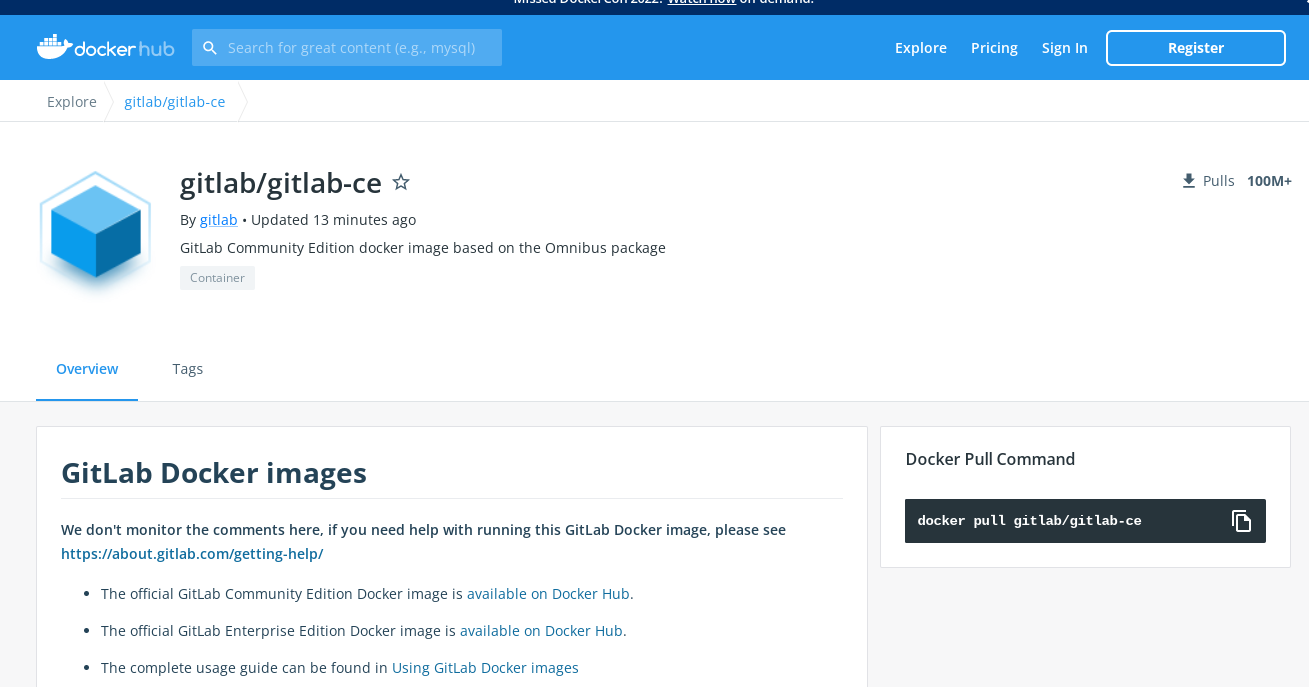
The image has many tags — pin a version or take the latest.
I deploy the management UI with a docker-compose.yml. When adding the service, set GITLAB_OMNIBUS_CONFIG so startup options are passed into the container.
Once the service is up, open a browser to your self-hosted GitLab:
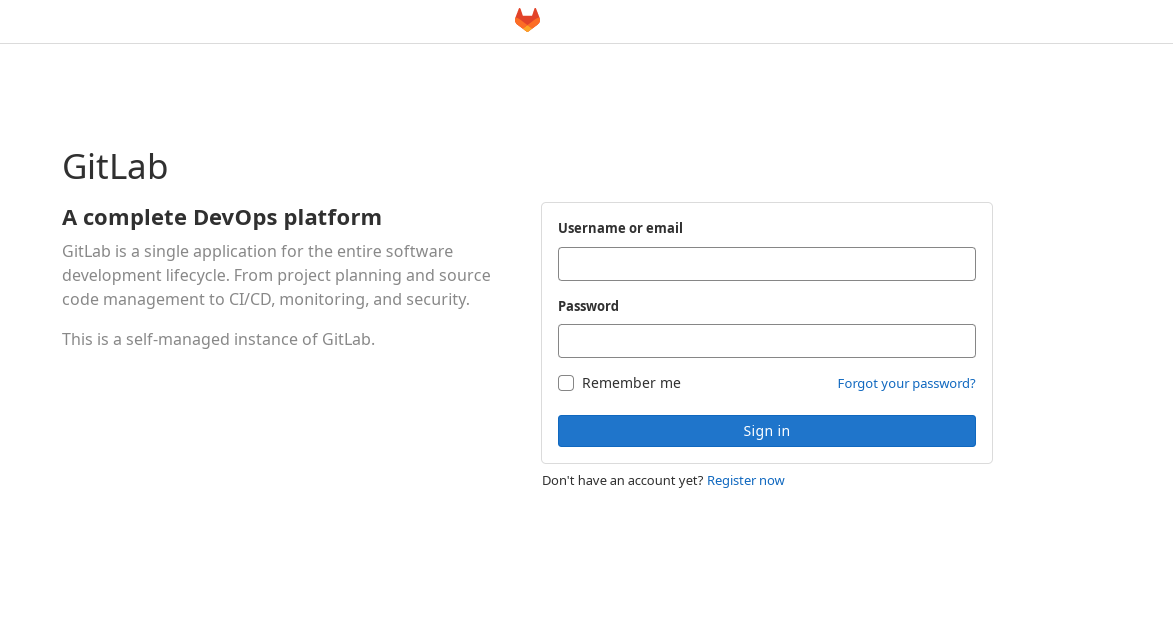
Sign in as admin
Next, sign in as admin to finish configuration. The username is root; the password comes from inside the container. You can also grab the container IP for later settings:
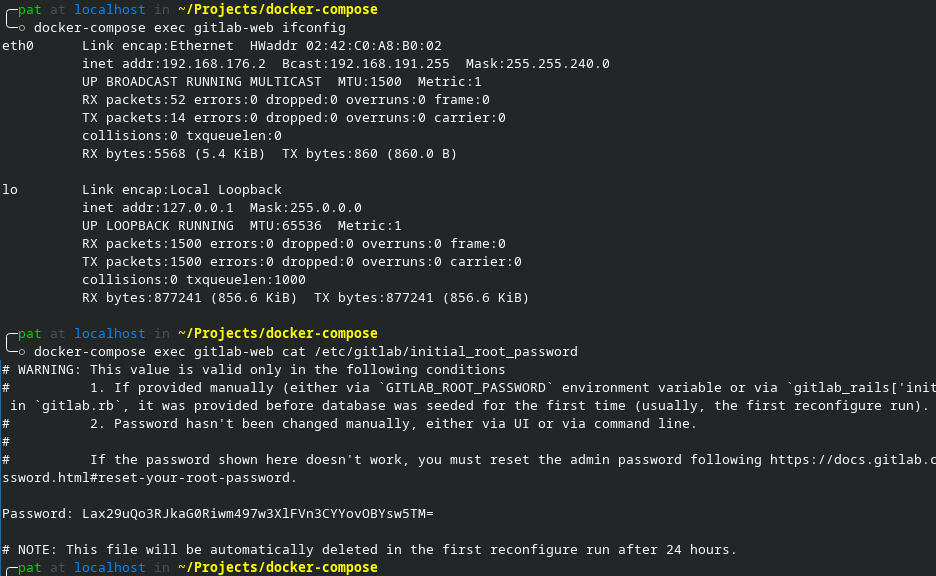
Use that password to log in.
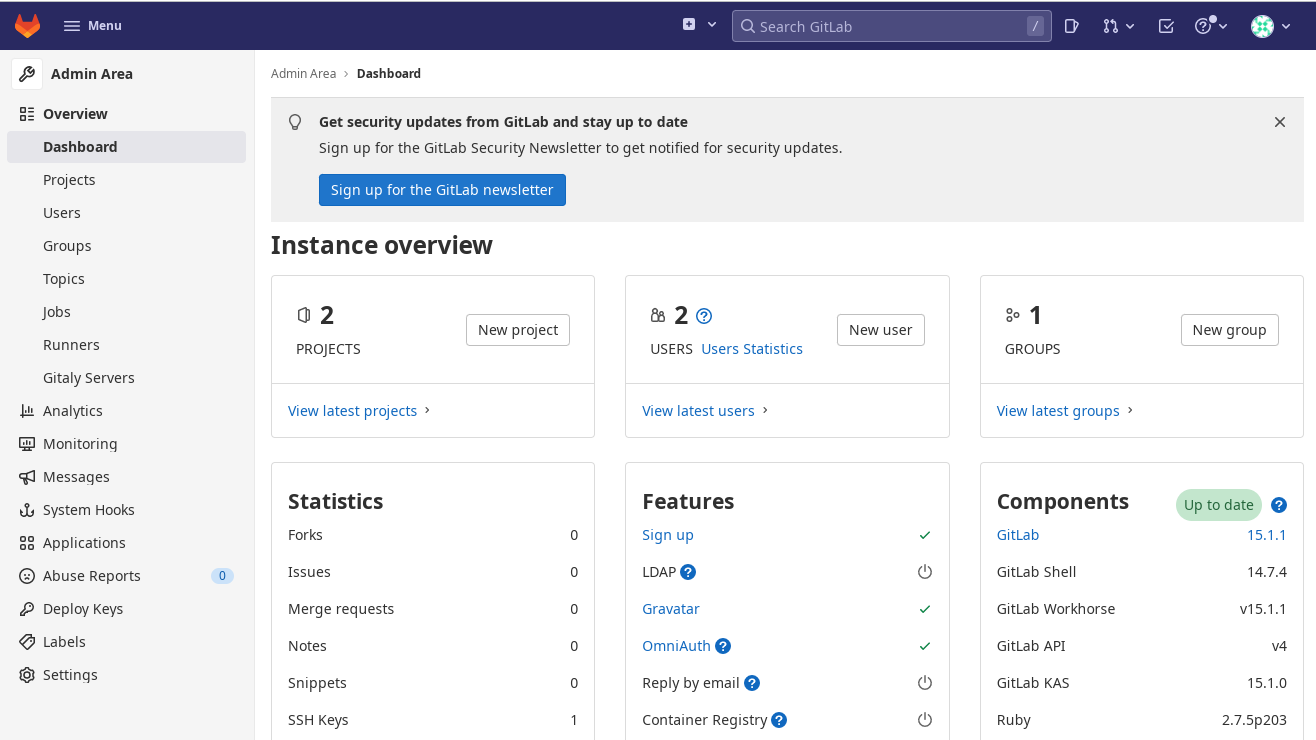
After login you land in admin settings, where you can configure the whole repository system.
We are not building GitLab only as a code host. If you only need a repo, consider something like
gogs— fast, simple, and GitHub-like. We want CI/CD as well.
CI/CD environment
This is the main part.
With the above in place, deploy GitLab Runner — the CI/CD agent. Under admin, open Runners to see the available list:
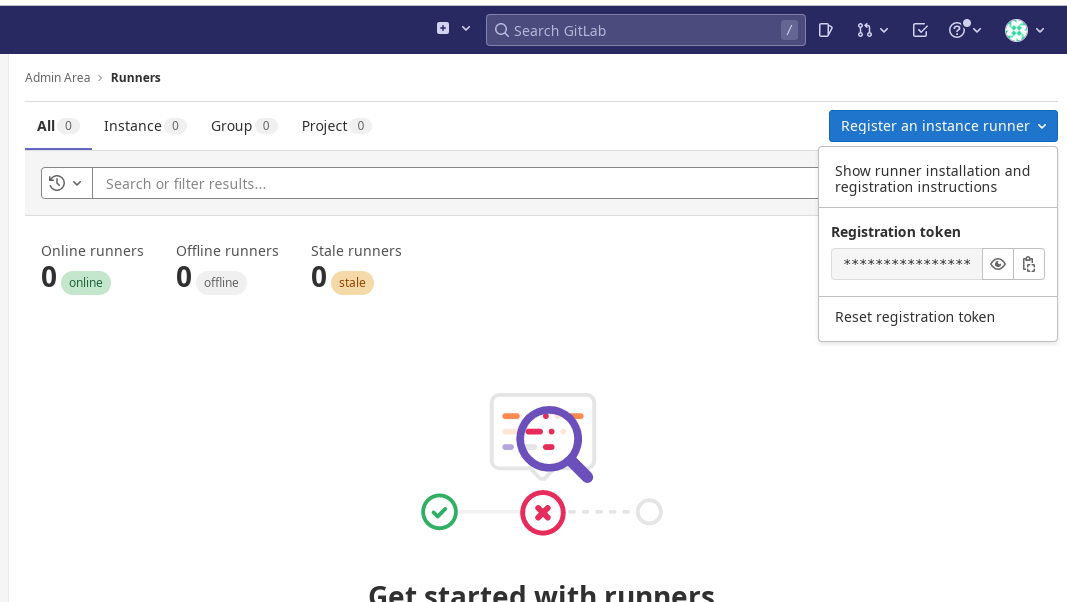
It is empty. Normally you install GitLab Runner on a worker machine.
I only wanted to poke at GitLab features, so I kept it simple: run GitLab Runner in Docker and register it locally. For IP resolution across containers, I added a hosts entry:
192.168.176.2 gitlab.me
192.168.176.2 may differ on your machine — use the GitLab container’s IP so other containers resolve correctly.
Register the runner (copy the token from Registration token in the screenshot above):
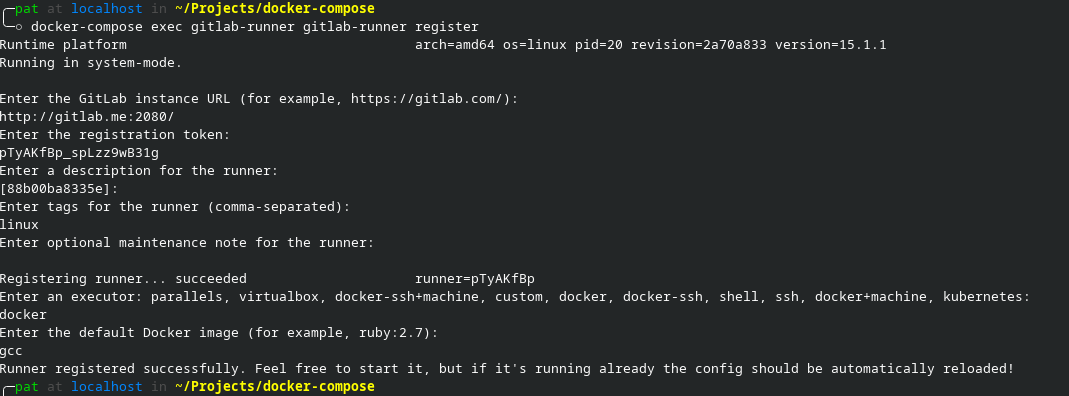
After registration, the runner appears in the Runners list.
I chose the
dockerexecutor so I can build with a Docker image (gcc). That fits a Docker-based deploy. If Runner is installed on a bare machine that already has a toolchain, use theshellexecutor. If the worker must SSH to another host to build, usessh. Pick based on your environment.
After registration, the new runner shows up:
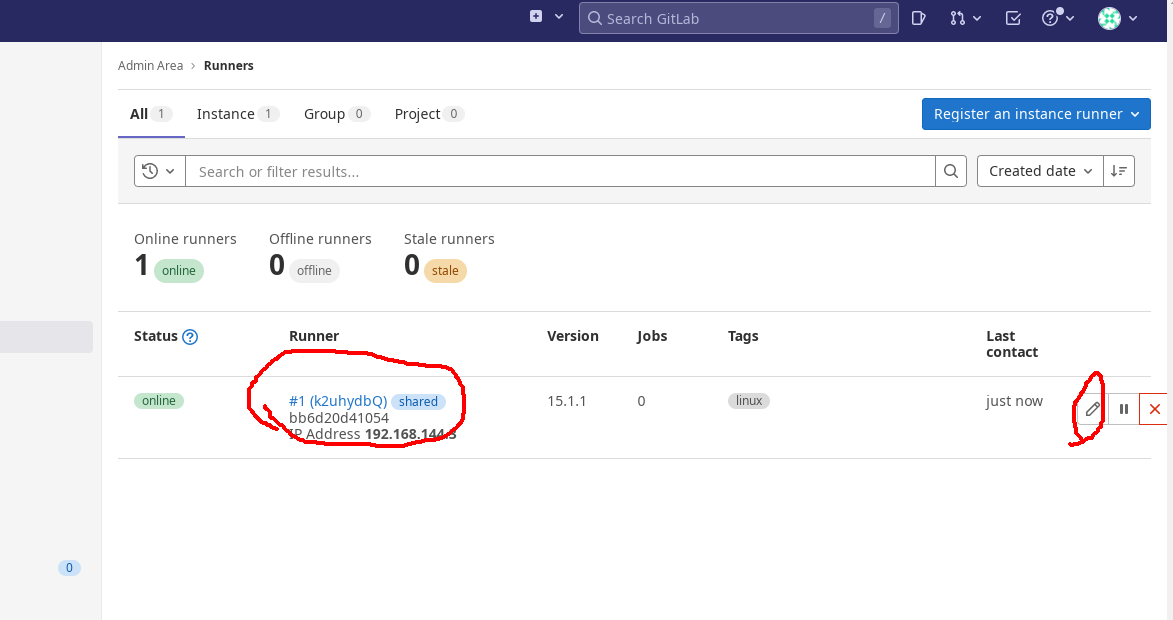
Click the left-hand link for details:
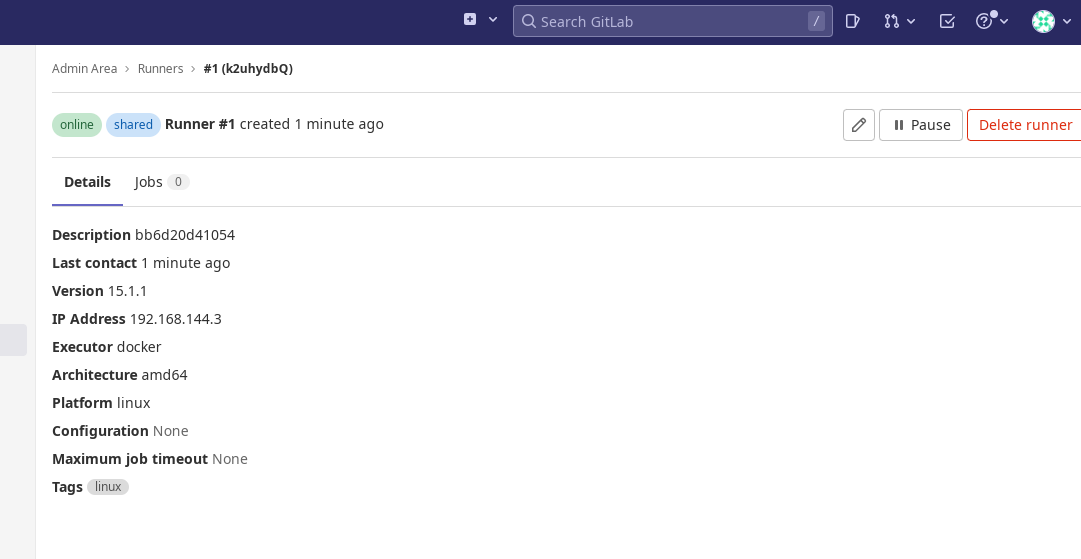
Click the pencil on the right to edit settings:
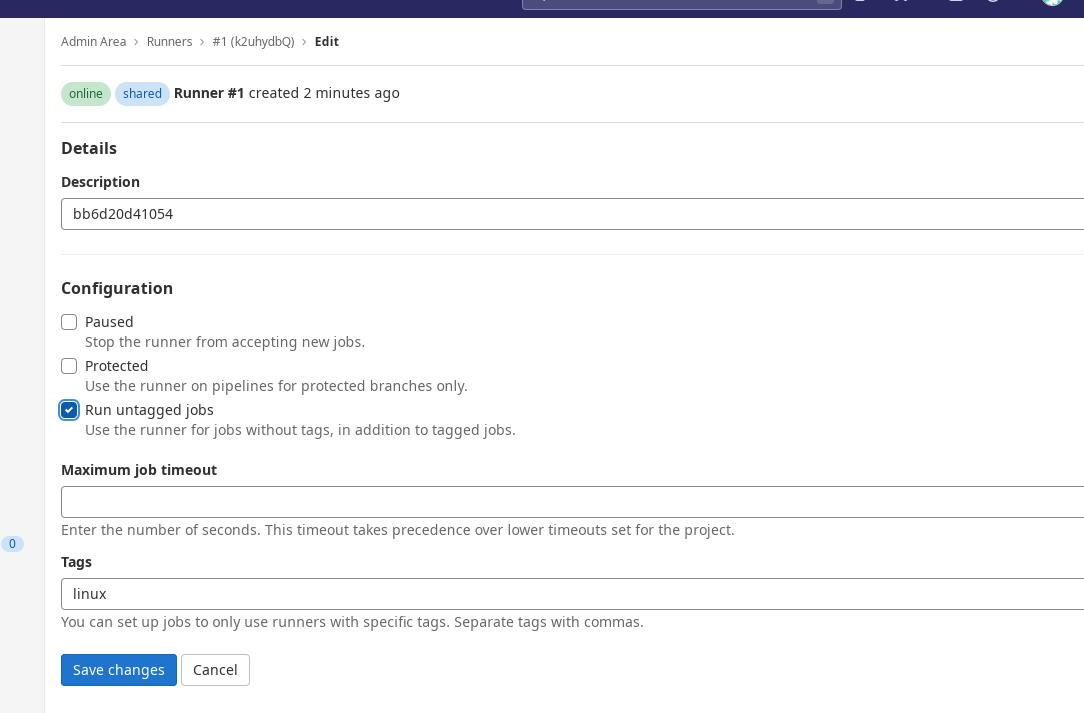
I checked Run untagged jobs and saved.
That finishes the basic Runner setup.
Runners have more options — see the official docs.
Create a regular user
Open a private window, go to login, click Register now, fill in the form, then have an admin approve the user. Once approved, the new user can sign in (the screenshot shows a user who already created a project):
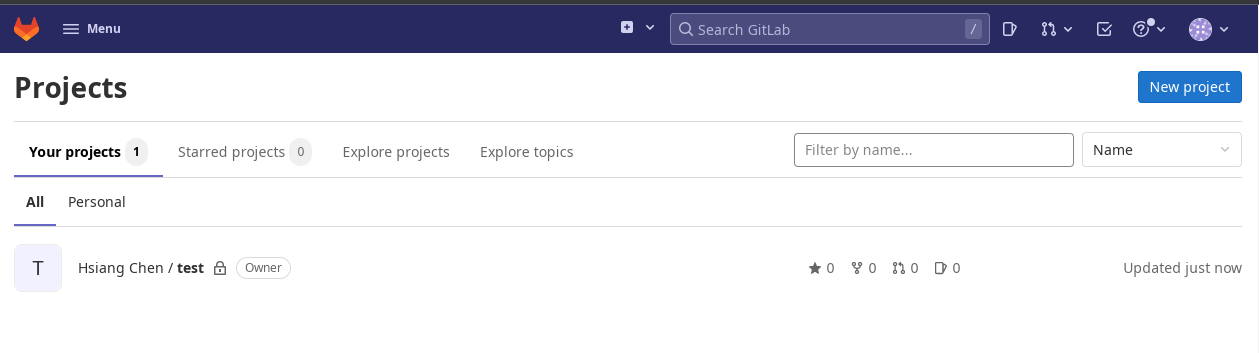
This account is the developer used for the CI/CD test below.
Create a project
Click New project and fill in the basics:
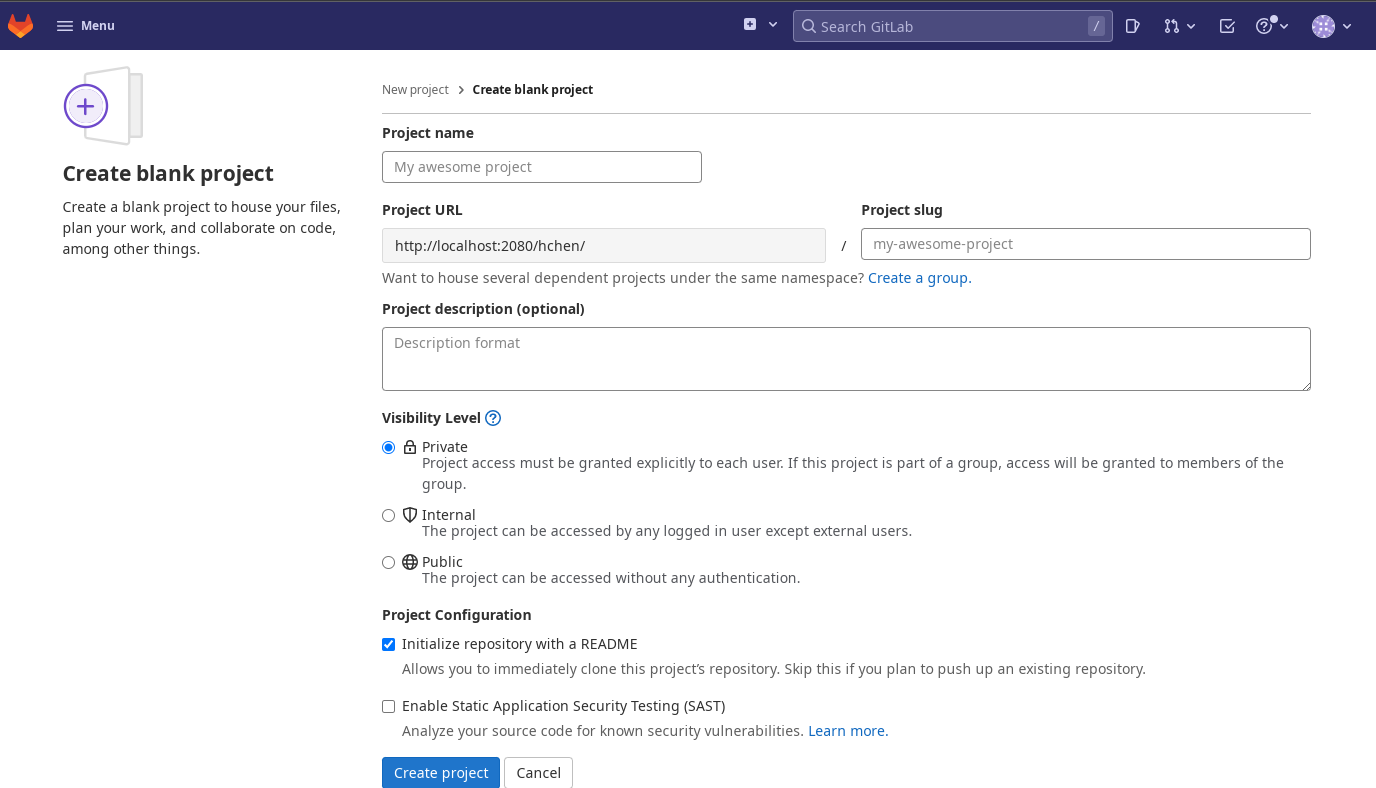
Set up .gitlab-ci.yml
Add a .gitlab-ci.yml at the repo root with pipeline jobs.
Mine is minimal: script for the build command, only for the branch (main), and tags matching the runner’s tags.
More
.gitlab-ci.ymldetail: official docs.
Push code and run CI
With everything ready, write code and push to main:
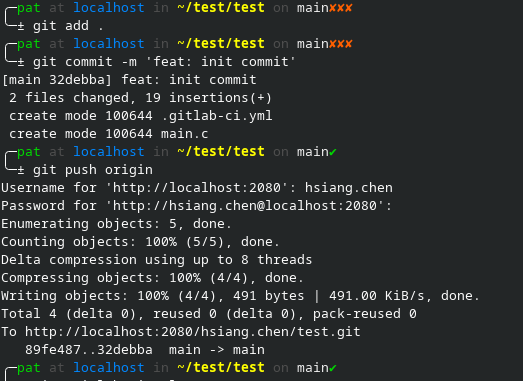
Right after the push, the pipeline updates:
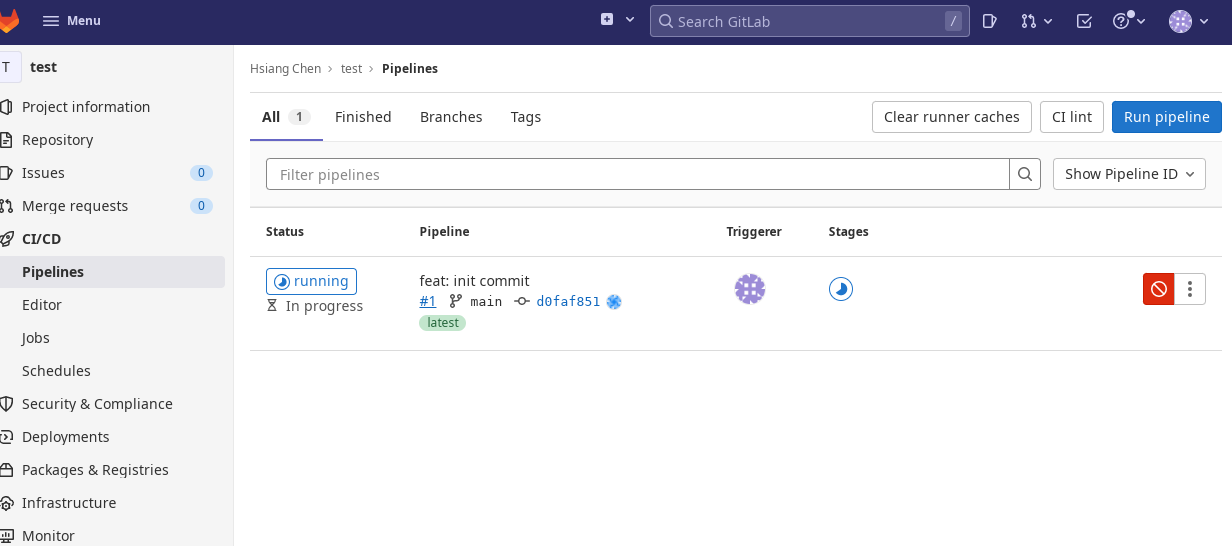
Open the running pipeline for job details:
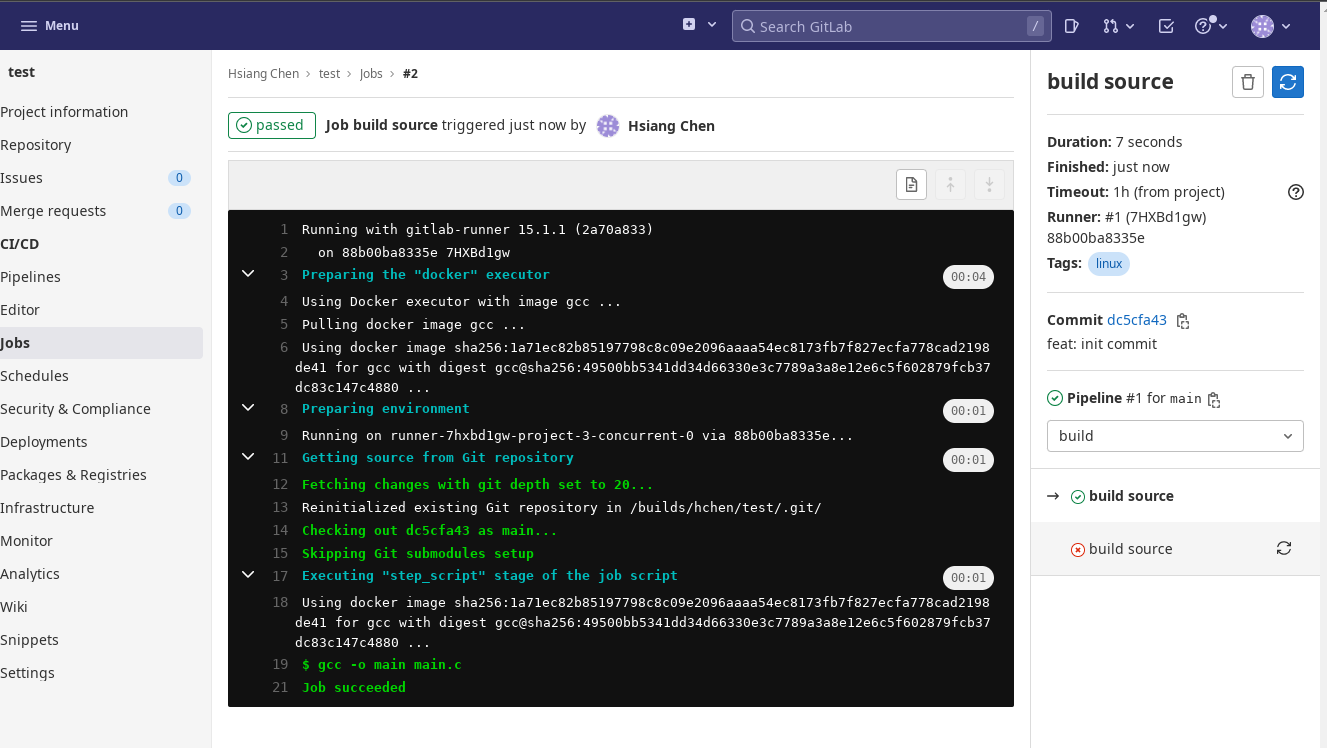
That completes a basic GitLab setup with CI/CD. Overall it is a practical code-management stack.
Concrete configs
Two test configs for reference.
My test configs
.gitlab-ci.yml:
stages:
  - build

build source:
  stage: build
  tags:
    - linux
  script:
    - gcc -o main main.c
  only:
    - main
  interruptible: true
docker-compose.yml:
version: "3.0"

services:
  gitlab-web:
    image: gitlab/gitlab-ce
    restart: always
    hostname: 'gitlab.me'
    environment:
      GITLAB_OMNIBUS_CONFIG: |
        external_url 'http://gitlab.me:2080/'
    ports:
      - '2080:2080'
      - '2443:443'
    volumes:
      - ./gitlab/config:/etc/gitlab
      - ./gitlab/logs:/var/log/gitlab
      - ./gitlab/data:/var/opt/gitlab
    networks:
      - gitlab

  gitlab-runner:
    image: gitlab/gitlab-runner:alpine
    restart: always
    depends_on:
      - gitlab-web
    volumes:
      - /var/run/docker.sock:/var/run/docker.sock
      - ./gitlab/gitlab-runner:/etc/gitlab-runner
    networks:
      - gitlab

networks:
  gitlab:
    name: gitlab-network
Pitfalls I hit
Likely gotchas:
- If
external_urlinGITLAB_OMNIBUS_CONFIGincludes a port, Docker’s service listen binds to that port.- In the runner
config.toml, underrunner.docker, setnetwork_modetogitlab-networkto matchdocker-compose.yml.